|
AWS BASIC SEARCH - INSTRUCTIONS
- You can search by AWS document number (document number) and subject.
- If you know your AWS document number, enter it in the "Describe what you are looking for" box and click the Designation/Number button. Then click Search to start the search process.
- If you wish to search by subject, enter your search term in the "Describe what you are looking for" box, click the Subject button, then click Search to start the search. See "Subject Search", below, for more detail.
- If you wish to search only for currently active Standards, click the "Search Active Standards Only" box only. If you wish to review superseded and/or withdrawn Standards as well as active Standards, do not click the box.
- For example, a search for the current edition of AWS D1.1 would be set up as follows:

Go to Top
Search Results Overview
Below is an example of a Search Results screen. Results are in sequence by AWS document number.
NOTE: To search by subject, simply enter your search term in the text box, then click the Subject button to start the search.
Go to Top
Search Results Instructions
- Once the Search Results screen displays, review the list and click on the number of the standard you want to display.
Go to Top
Search Results Screen
- After clicking on the title of the AWS Standard you want to view, a Document Detail screen displays. The next page shows an example.
Document Detail Screen
Go to Top
Viewing and Saving the Standard
- After reading the Abstract, if you choose to view the entire AWS Standard scroll to the bottom of the screen to the Fulltext icon.
- Click on the filename with the PDF extension.
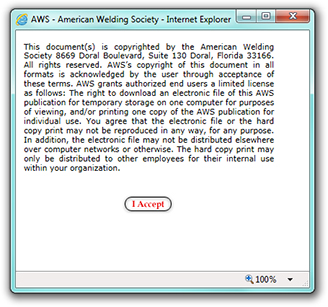
- A User Acceptance screen displays. An example is shown below.
- Read the terms of use on the User Acceptance screen. If you agree, click on the I Accept button to proceed.
Go to Top
DOWNLOAD OPTIONS
- Once your credentials are verified by the system, you will have the option to open the document or save it. If you choose to Open the document, you will be able to view it on your screen. You may also print a copy. If you choose the Save option, you may save a copy to your computer for future reference.
Go to Top
SUBJECT SEARCH – DETAIL
- To search by subject, you may enter one or more search terms in the "Describe what you are looking for" box, click the Subject button, then click the Search box.
- The system treats a multiple term search as an "OR" search and will return matches for all the terms entered.
- The search engine will display a list of matching documents, sequenced with the closest matches shown first.
- For example, a search for "Stainless Steel Electrodes" will result in a lengthy list of matching documents, but those most closely related to the search terms will be displayed first:
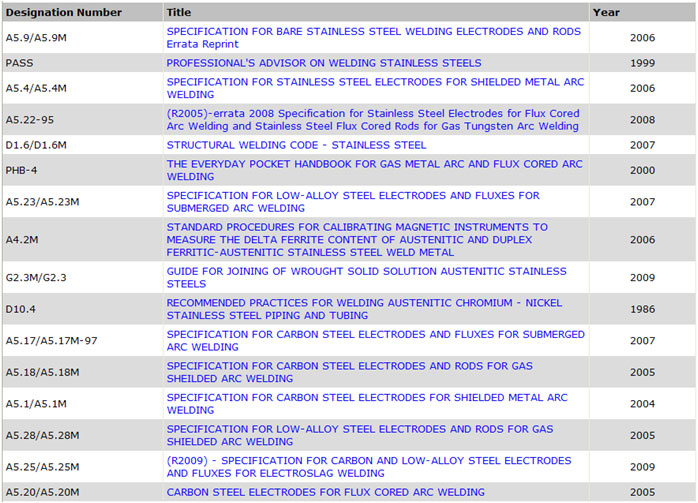
- This is a partial listing for this search.
Go to Top
AWS ADVANCED SEARCH OPTION
Advanced Search Overview
The Advanced Search option allows for more complex search strategies to be used when simple document number or subject searching does not produce the desired result. The Advanced Search allows for the use of “AND” and “OR” search strategies. It also allows for the search to be directed to all search fields or those most appropriate based on the user’s knowledge of the subject.
Advanced Search Instructions
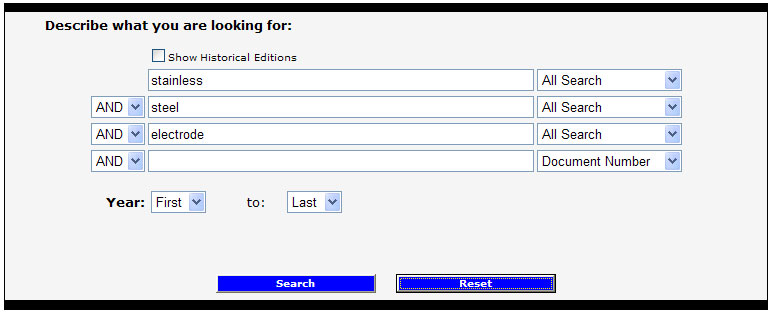
- Type a single search term in each of the boxes provided. For example, if you want to search for all documents dealing with Stainless Steel Electrodes , type each word in an individual box.
- Using the drop-down box at the right, select the fields you want to search. The highest success level is generally achieved by using the All Search option. The available fields are:
- All Search (Searches all of the fields in the AWS Standards computer records)
- Titles (Searches only in the Titles of AWS Standards)
- Document Number (All or part of the document number)
- Abstract (Searches only the text of the abstract) paragraph of AWS Standards)
- Year Published (Searches for documents published in a specific year.)
- Using the drop-down box at the left, select from the search operators of AND or OR to further refine your search. Type the information you want to be included (AND, OR) in your search in the field. Here is an example:
Go to Top
Advanced Search Results Instructions
- Once the Search Results screen displays, click on title of the standard you want to display.
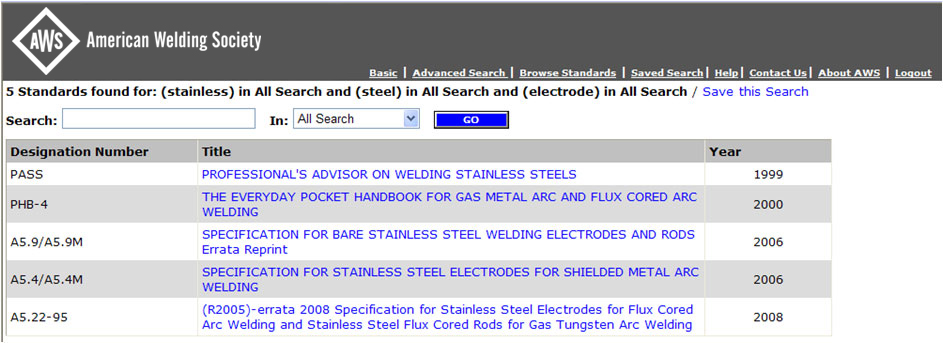
- Proceed as described above to display or save the document.
Go to Top
|